Wednesday, September 10, 2008
Opera 9.5 and Google Chrome
Opera launched Opera 9.5 which fixed a lot of the issues that I had mentioned earlier. The most important change made, which fixes a long standing quarrel I had with Opera, was that an option was added to switch to the next tab after closing the current one. This makes Opera's behavior consistent with that of most other major browsers (Internet Explorer, Firefox, Safari, Chrome etc.) Here are some issues that still prevent me from making Opera my default browser:
Lack of a "Safari" style RSS reader: The Opera RSS reader uses the each-RSS-item-is-an-email model. I prefer the Safari (or IE7 or Firefox with Sage) each-feed-is-a-rendered-page model.
Can't move Personal Bar next to the menu: This is just a convenient space saver. In Firefox, I can move the Bookmarks Toolbar in Firefox right next to the menu. Thus giving me some more browsing space while retaining quick access to my favorite bookmarklets.
Adblock and UserJS UI primitive compared to Firefox: While Opera does possess ad blocking and user scripting capabilities, the UI exposed for both is very primitive as compared to Firefox. For example, there is no easy way to white-list websites using the Opera content blocker.
No built-in spell checking: While spell checking can be enabled in Opera, it is not at seamless and easy to use as the spell checking built into Firefox and Safari.
Firefox is catching up: One of Opera's most compelling and unique features was the full page zoom. Unfortunately, with the release of Firefox 3.0, Mozilla has replicated this very useful feature in Firefox and made it more useful by adding the capability to remember the zoom level for each website. And Opera's other selling point, speed, is also being threatened thanks to Mozilla initiatives such as Tracemonkey.
When it comes to speed, Google claims that it's freshly launched Chrome browser is the fastest. However, Chrome also comes with a most unique feature that no other browser possesses (well, except maybe IE 8:) per tab processes and a browser task manager.
It also steals features from:
- Firefox
- Instant bookmarks
- Firefox extensions
- Application shortcuts = Mozilla Prism
- Dynamic tabs = Tab Mix Plus
- Simpler Downloads = Download Statusbar
- Safari
- Incognito Mode = Private Browsing
- Opera
- One box for everything = Opera 9.5 address bar
- New tab page = Speed Dial
Closing the last tab closes the browser: Closing the application should only happen when the user clicks on the big red X at the top right corner or chooses exit from the File menu.
Lack of web feed support: RSS feeds, Atom feeds etc. mean nothing to Chrome. Hopefully a feed capable version will be available soon.
No built-in spell checking: A must for all bloggers.
Extended Validation Certificate UI is lacking: While Chrome supports EV certificates, the UI used to display them is primitive compared to Firefox, Internet Explorer and Opera.
Installs in Local Application Data directory instead of Program Files: This is a big issue. It effectively means that every user will have to install and run his own copy of Chrome. There are many other negative ramifications of this decision. This thread on the Chrome Google Group has details.
Website Issues: Certain websites are slow and buggy. Facebook and Hotmail are two major ones.
Crashes: For a browser that is supposed to be crash resistant by design, I have had it crashing a decent number of times. Look at this thread. And finally,
No Adblock: Chrome lacks an ad blocker. While it seems unlikely that Google will ever release one, Chrome is open source, so perhaps we will see a third party extension soon.

Tuesday, June 12, 2007
10 Things Broken In Apple Safari on Windows
Apple released Safari 3 Beta for Windows with a lot of fanfare. Unfortunately they did a lot of things wrong. Other people have already written extensively about the lack of ClearType support and crashes. Here are 10 other things that Apple did wrong.
- Can't add custom search engines. Firefox, IE7 and Opera all support this.
- Double clicking on the tab bar to create a new tab doesn't work. Works in Firefox, IE7 and Opera. (Neither is there a New Tab button that I can drag to the tab bar.)
- Ctrl-Enter in the address bar doesn't autocomplete to www. .com. Neither does Shift-Enter to www. .net nor Ctrl-Shift-Enter to www. .org. Firefox supports all three and IE7 and Opera support the first. Opera can be customized to support all three.
- Middle clicking on a tab doesn't close it. Works on Firefox, IE7 and Opera. Perhaps because Macs don't have middle buttons? (Opera's problematic close behavior has been blogged about before.)
- Can't close the last tab. You can in Firefox and Opera.
- Grabs IE and Firefox bookmarks by default but doesn't display them in the Bookmarks menu. Doesn't grab Opera bookmarks.
- Doesn't use the standard RSS icon. Firefox, IE7 and Opera all do.
- Doesn't follow Windows UI conventions. Cannot resize using any border.
- Breaks Fitt's Law! There is a one pixel hole in the maximized Safari at the top right corner. Moving the mouse to the top right corner and clicking closes the maximized window underneath Safari!
- Complex font rendering broken e.g. Devanagari
Wednesday, April 18, 2007
Why Opera makes me weep
Opera 9.20 is out and it features another great innovation from the Opera developers: Speed Dial.
And yet, in spite of Opera being faster, leaner and slicker than Firefox, I'm still forced to use Firefox as my default browser. Let's explore why:
Broken Tabbed Browsing
Opera fanatics love to point out that Opera was the first mainstream browser to feature tabbed browsing. Unfortunately Opera's tabbed browsing model Just Doesn't Work™. Here's how I use tabbed browsing in Firefox (or IE7 for that matter.)
1. Visit Digg.com
2. Scan through the front page and middle click on the stories I'm interested in to them open them in background tabs.
3. Select the tab for the first story I had opened and read the story.
4. Close the tab by clicking on the little X on the tab.
5. Firefox takes me to the next tab i.e. the next story I had wanted to read. IE7 does the same. Opera unfortunately takes me back to the Digg.com front page i.e. the parent tab. Which is downright stupid.
Sadly there is no real way to fix this. You can install a custom button which does "Close page & Switch to next page", you can change the keyboard shortcut Ctrl-F4 to do the same, you can even set up a mouse gesture to do this. But for some stupid reason you cannot assign this to the little red X on each tab or even to the middle-click on each tab. And I'm so used to browsing this way that change is not possible. In fact, I shouldn't have to change. Programs should change to behave like users expect, users shouldn't have to change their behaviors for programs.
Lack of a "Safari" style RSS reader
The Opera RSS reader uses the each-RSS-item-is-an-email model. I prefer the Safari (or IE7) each-feed-is-a-rendered-page model. Firefox let's me chose either using appropriate extensions. (I have to admit that this isn't that much of a problem since the arrival of web-based RSS readers like PageFlakes and NetVibes.)
Lack of an easy way to emulate IE/Firefox keyboard shortcuts
"Ctrl +" for zooming in, "Ctrl -" for zooming out, "Ctrl 0" for zooming 100%, "Ctrl Enter" for "www. .com" completion, "Shift Enter" for "www. .net" completion, "Ctrl Shift Enter" for "www. .org" completion, entering search terms in the URL bar for an I'm Feeling Lucky search. This is stuff I'm used to. I'm aware that I can customize Opera to do all this, but perhaps there should be a simple one-click way of doing this. Again, programs should change to behave like users expect, users shouldn't have to change their behaviors for programs.
That's all the rants I have for Opera. This a huge improvement over my earlier list, and I can see that Opera is now a lot closer to being the perfect browser. All Firefox will have to do to be the perfect browser is to be as fast and as memory efficient as Opera. Tough order.
And yet, in spite of Opera being faster, leaner and slicker than Firefox, I'm still forced to use Firefox as my default browser. Let's explore why:
Broken Tabbed Browsing
Opera fanatics love to point out that Opera was the first mainstream browser to feature tabbed browsing. Unfortunately Opera's tabbed browsing model Just Doesn't Work™. Here's how I use tabbed browsing in Firefox (or IE7 for that matter.)
1. Visit Digg.com
2. Scan through the front page and middle click on the stories I'm interested in to them open them in background tabs.
3. Select the tab for the first story I had opened and read the story.
4. Close the tab by clicking on the little X on the tab.
5. Firefox takes me to the next tab i.e. the next story I had wanted to read. IE7 does the same. Opera unfortunately takes me back to the Digg.com front page i.e. the parent tab. Which is downright stupid.
Sadly there is no real way to fix this. You can install a custom button which does "Close page & Switch to next page", you can change the keyboard shortcut Ctrl-F4 to do the same, you can even set up a mouse gesture to do this. But for some stupid reason you cannot assign this to the little red X on each tab or even to the middle-click on each tab. And I'm so used to browsing this way that change is not possible. In fact, I shouldn't have to change. Programs should change to behave like users expect, users shouldn't have to change their behaviors for programs.
Lack of a "Safari" style RSS reader
The Opera RSS reader uses the each-RSS-item-is-an-email model. I prefer the Safari (or IE7) each-feed-is-a-rendered-page model. Firefox let's me chose either using appropriate extensions. (I have to admit that this isn't that much of a problem since the arrival of web-based RSS readers like PageFlakes and NetVibes.)
Lack of an easy way to emulate IE/Firefox keyboard shortcuts
"Ctrl +" for zooming in, "Ctrl -" for zooming out, "Ctrl 0" for zooming 100%, "Ctrl Enter" for "www. .com" completion, "Shift Enter" for "www. .net" completion, "Ctrl Shift Enter" for "www. .org" completion, entering search terms in the URL bar for an I'm Feeling Lucky search. This is stuff I'm used to. I'm aware that I can customize Opera to do all this, but perhaps there should be a simple one-click way of doing this. Again, programs should change to behave like users expect, users shouldn't have to change their behaviors for programs.
That's all the rants I have for Opera. This a huge improvement over my earlier list, and I can see that Opera is now a lot closer to being the perfect browser. All Firefox will have to do to be the perfect browser is to be as fast and as memory efficient as Opera. Tough order.
Labels: firefox, freeware, opera, software
LinkWednesday, June 14, 2006
Tiny Extensions Which Should Be Merged Into Firefox
Firefox while usually very intuitive, has some strange gaps in functionality which make certain tasks unnecessarily difficult. Here's a list of tiny extensions which fix it. In alphabetical order:
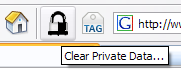
Clear Private Data Button
Adds a button that lets you clear private data. This is the same functionality as the menu item Tools -> Clear Private Data... Useful for compulsive cookie clearer's like me.
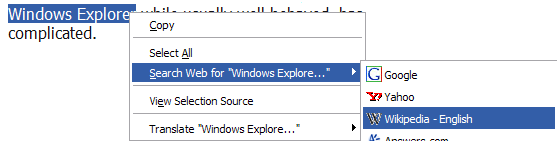
Context Search
Lets you right click on a selection and search for it using any of the installed search engines instead of the currently selected ones. (Tip: You can add many useful engines from the Search Engine Page and Mycroft.)
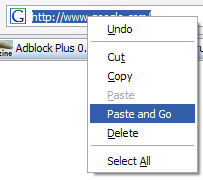
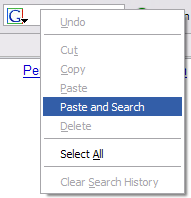
Paste and Go
Steals the feature from Opera. Lets you right click the address bar and Paste and Go instead of Paste and manually clicking the Go button. As a bonus also adds a Paste and Search item if you right click on the search bar. (Yes, we know we're lazy!)
Searchbar Autosizer
Automatically resizes the search bar depending upon length of the text typed in.

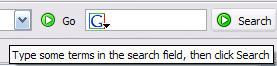
Search Button
Adds a button just like the Go button to the right of the search bar. Useful when there's already some text in the search bar but you don't want to take your hand off the mouse to hit Enter. (We really are very lazy!)
Search Plugin Hacks
Adds a very useful feature. Lets you delete search plugins. Just right click on a search plugin you want to remove and delete it.

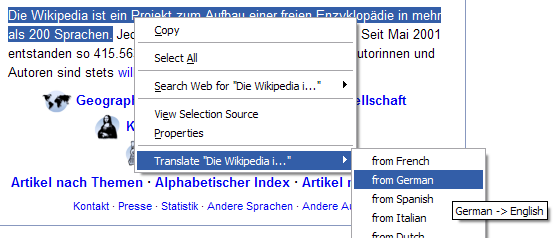
Translate
Lets you translate entire webpages via an item in the Tools menu and snippets of selected text using the content menu. Translation is done using Babelfish.
(After installing the Clear Private Data Button and the Search Button you'll have to add them to your toolbar manually. Do this by right clicking on the toolbar and selecting Customize... and dragging the buttons to the appropriate locations on the toolbar.)
Quite a lot of the functionality that these extensions bring is going to be a part of Firefox 2, so they'll be unnecessary then.
Tags: Firefox, freeware Link
Clear Private Data Button
Adds a button that lets you clear private data. This is the same functionality as the menu item Tools -> Clear Private Data... Useful for compulsive cookie clearer's like me.
Context Search
Lets you right click on a selection and search for it using any of the installed search engines instead of the currently selected ones. (Tip: You can add many useful engines from the Search Engine Page and Mycroft.)
Paste and Go
Steals the feature from Opera. Lets you right click the address bar and Paste and Go instead of Paste and manually clicking the Go button. As a bonus also adds a Paste and Search item if you right click on the search bar. (Yes, we know we're lazy!)
Searchbar Autosizer
Automatically resizes the search bar depending upon length of the text typed in.
Search Button
Adds a button just like the Go button to the right of the search bar. Useful when there's already some text in the search bar but you don't want to take your hand off the mouse to hit Enter. (We really are very lazy!)
Search Plugin Hacks
Adds a very useful feature. Lets you delete search plugins. Just right click on a search plugin you want to remove and delete it.
Translate
Lets you translate entire webpages via an item in the Tools menu and snippets of selected text using the content menu. Translation is done using Babelfish.
(After installing the Clear Private Data Button and the Search Button you'll have to add them to your toolbar manually. Do this by right clicking on the toolbar and selecting Customize... and dragging the buttons to the appropriate locations on the toolbar.)
Quite a lot of the functionality that these extensions bring is going to be a part of Firefox 2, so they'll be unnecessary then.
Tags: Firefox, freeware Link